Reactivating Your Microsoft MFA (for Non-Government Agency Users)
Featured
This step-by-step guide is intended for non-government agency users who use a Microsoft Outlook account on the platform. It explains how to reactivate Multi-Factor Authentication (MFA) after changing your mobile device or phone number.
🛑 If you're using an Apex or Gmail-based account:
You should not be prompted to verify via the Microsoft Authenticator app. If you are, please submit a support ticket under “Account Access Related Matters”, and mention that you're using a Gmail or Apex system.
🏛️ For Government Agency Personnel:
Please approach your agency’s Techbar for support.
🔄 Getting Started: Resetting Your MFA
Note: If you've only changed your phone number (not the device), you may skip Step 1.
✅ Step 1: Remove MFA from Your Old Device
If you still have access to your old phone, remove your MFA settings to prevent it from linking back. Meanwhile, download the Microsoft Authenticator app on your new device.
✅ Step 2: Log in to Your Microsoft Account
Go to: https://mysignins.microsoft.com
Forgot your password? Reset it here:
Reset Microsoft Password
If you're stuck, please contact your IT department for help.
✅ Step 3: Remove Old Authenticator Settings
After logging in:
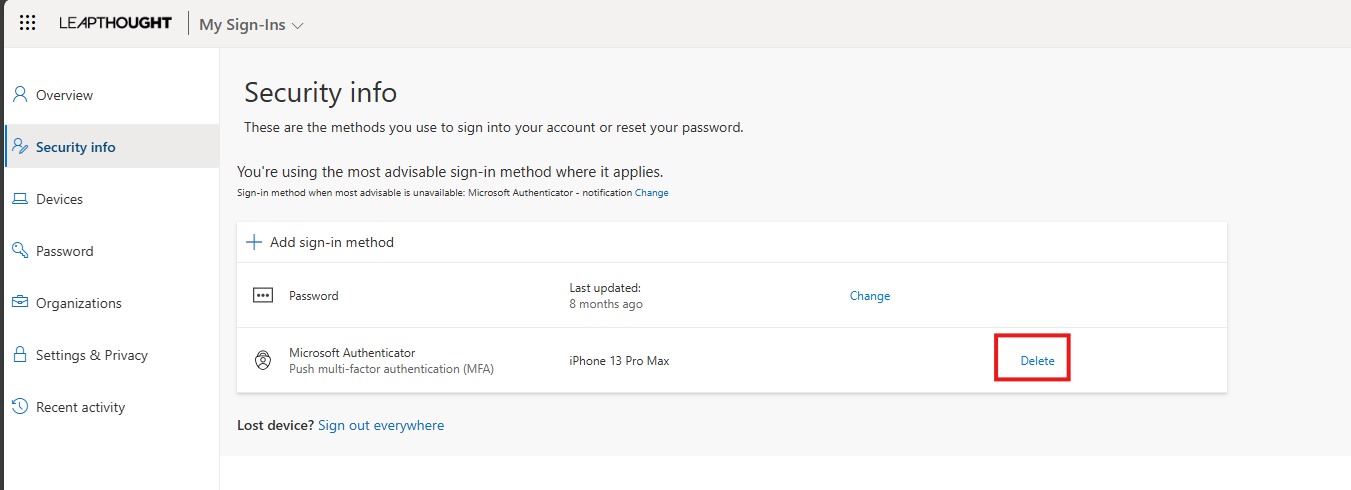
Under Security Info, remove any old phone numbers or authenticator apps.
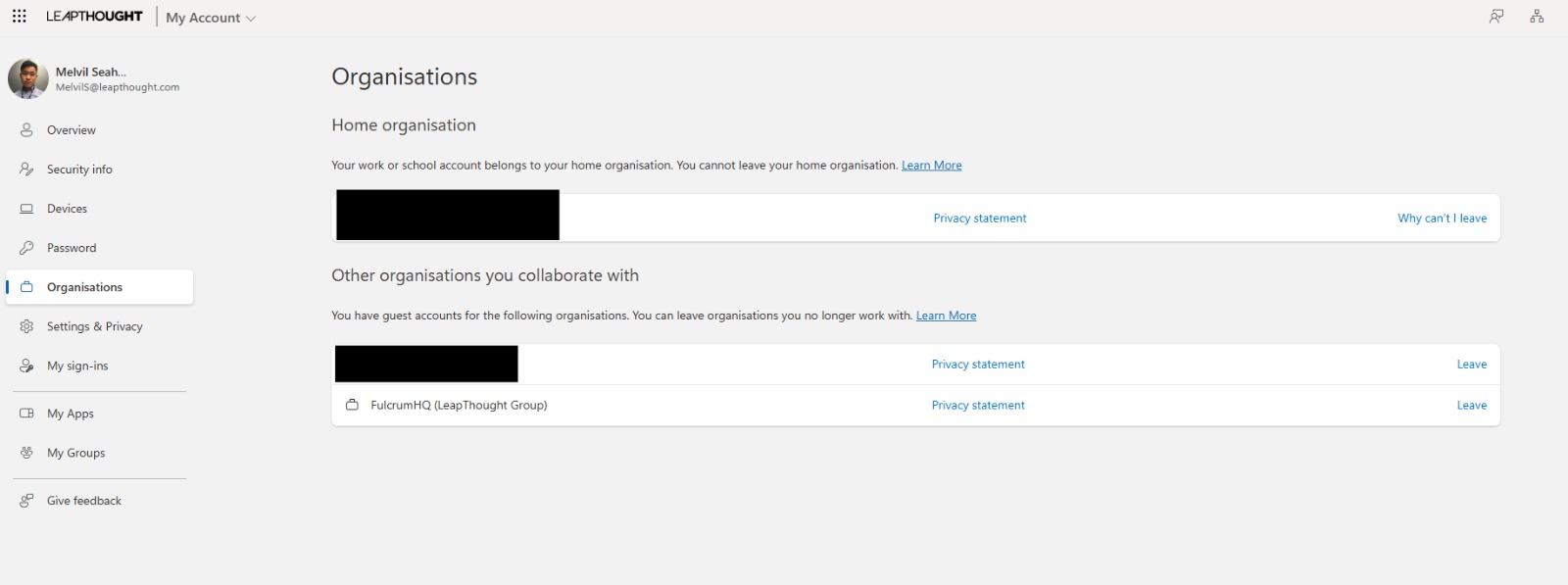
Scroll down to the Organization section on the same page and leave FHQ as shown in the screenshot.
✅ Step 4: Re-login and Follow MFA Setup
After completing the above steps:
- Log in again to the platform.
- You’ll be guided through the process to relink your MFA.

Click Next,
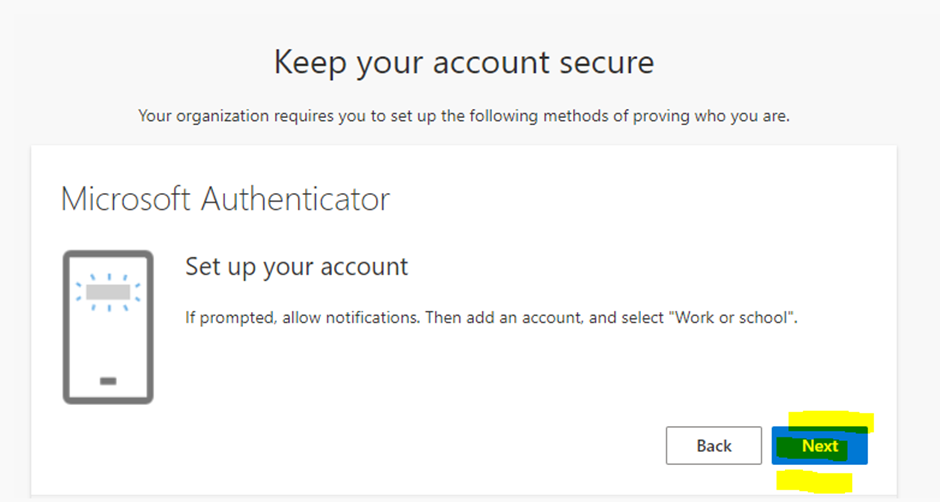
Click Next again,
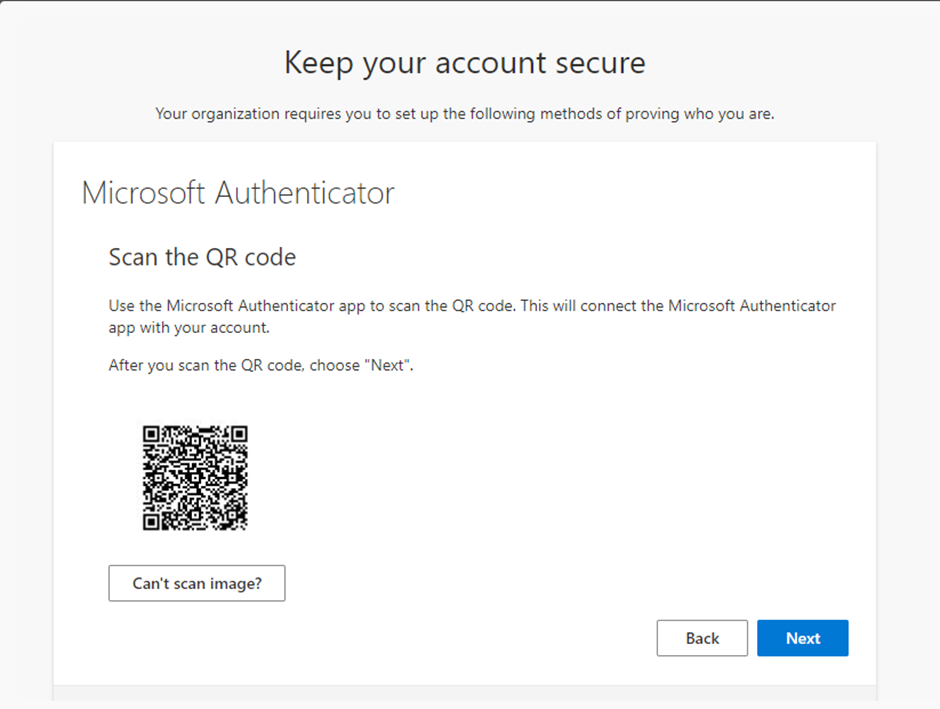
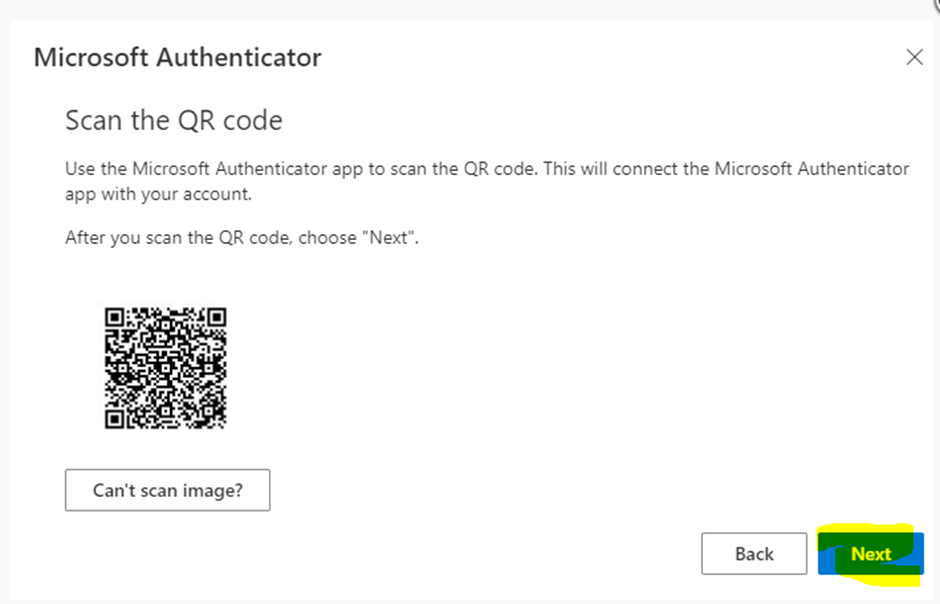
Open MFA mobile application on your new device, and follow as highlighted.

Once you scan, click Next.
Microsoft would prompt you to test it out.
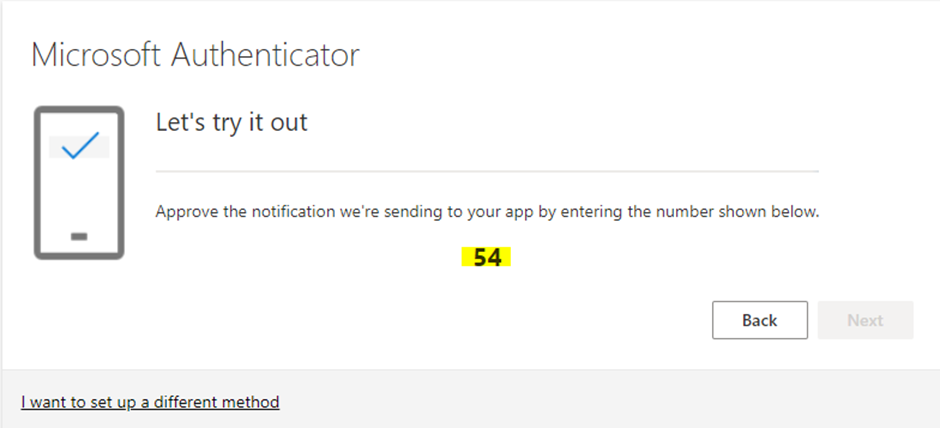
Enter the code generated in the app when prompted
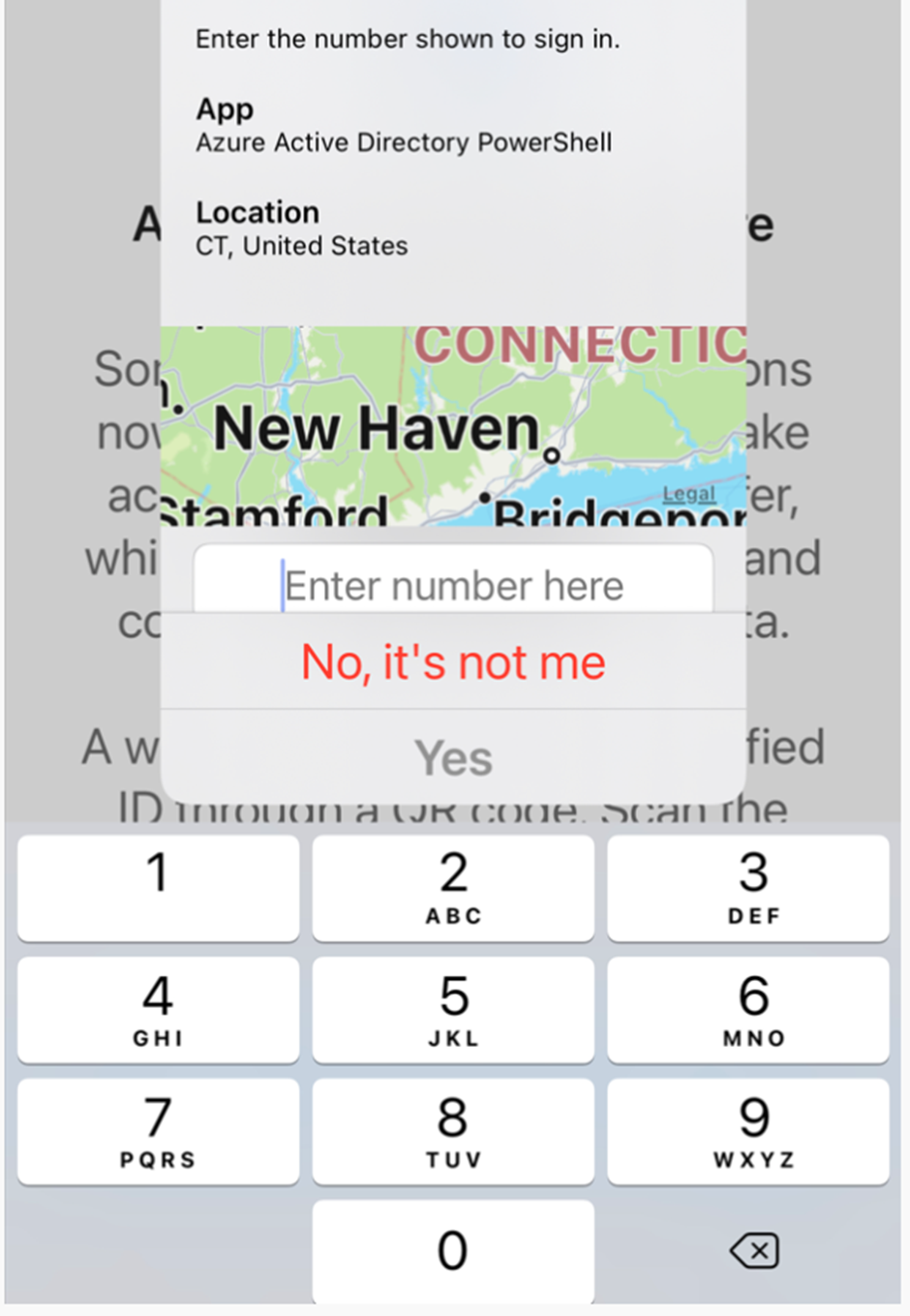
You’ll receive confirmation once the authentication is successful

Once you log in,
- You would be experiencing either error messages
-
"self-registering..," or “your account is not a user in this tenant…”, your account simply required an reactivation. 👉 Raise a support ticket under “Account Access Related Matters.
-
🆘 Need Help? Still facing issues?
👉 Raise a support ticket under “Account Access Related Matters.”
Post is closed for comments.
Comments
0 comments